Team and roles
Invite teammates, set what each role can do, and switch workspaces.
Everything you make lives in a workspace: your forms, responses, lists, chats and payment settings. Each workspace is kept apart from every other. Invite people to work in yours, each with a role.
Roles
| Role | Can |
|---|---|
| Owner | Everything, including payout details, the team and deleting forms. |
| Admin | Everything an editor can, plus payout details, inviting people and changing editors and viewers. |
| Editor | Build, edit, publish and delete forms; handle responses; manage lists and automations. |
| Viewer | See everything; change nothing. |
Roles are checked on the server for every action, not just hidden in the interface.
Invite someone
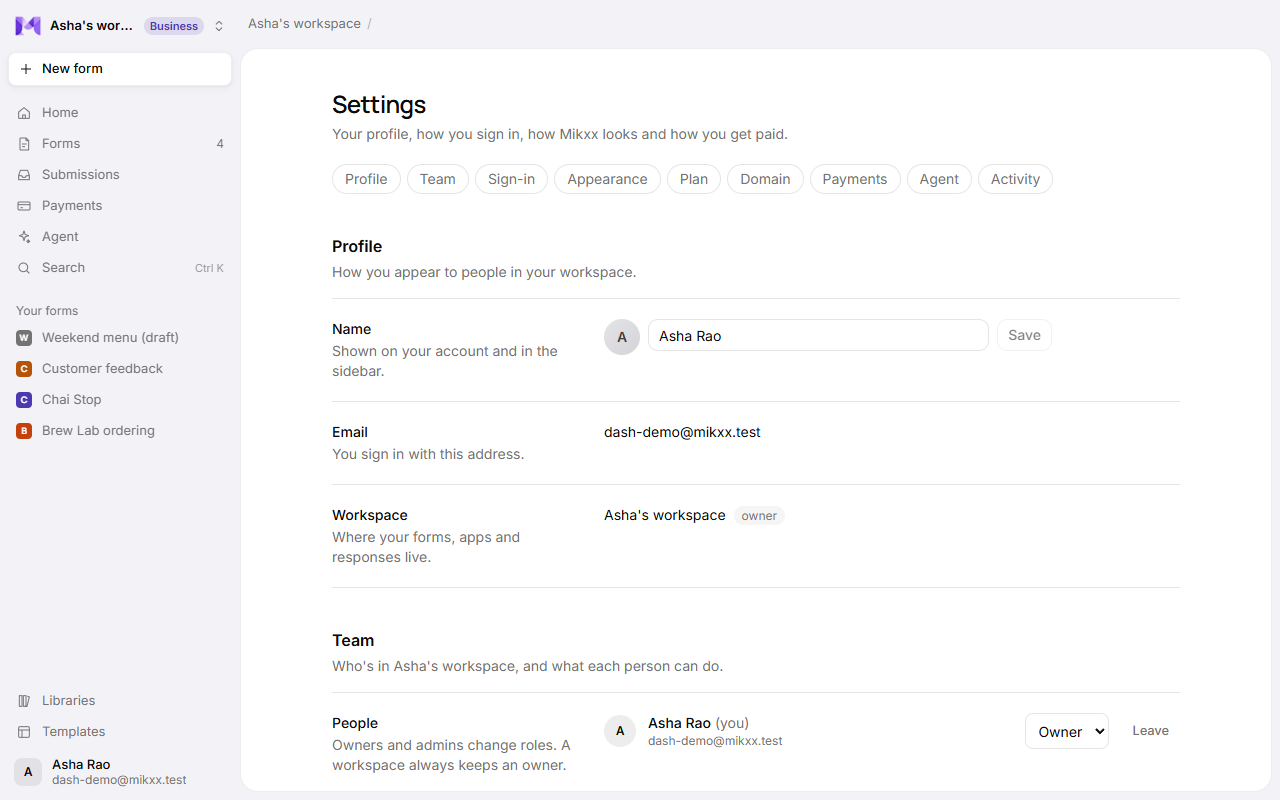
- Open Settings → Team (or Invite people in the workspace menu at the top of the sidebar).
- Under Invite someone, type their email, pick a role and click Send invite.
- They get an email with a link. It works once, for 7 days, and only for that email address.
Owners can invite admins; admins can invite editors and viewers. To make someone an owner, invite them first, then change their role once they've joined.
Waiting to join lists invitations not yet accepted:
- Resend emails a new link (the old one stops working) and gives it another 7 days. You can resend once a minute.
- Withdraw cancels the invitation; its link stops working.
A workspace can send up to 30 invitations an hour.
Joining a workspace
Opening the link shows who invited you, to which workspace and as what.
- Signed in with the invited email: click Join. You land in that workspace.
- No account yet: click Create an account. The invited email is filled in, and you come back to the invitation once you've signed up.
- Signed in with a different email: the page says whose invitation it is, and Sign out and use that address.
Change roles and remove people
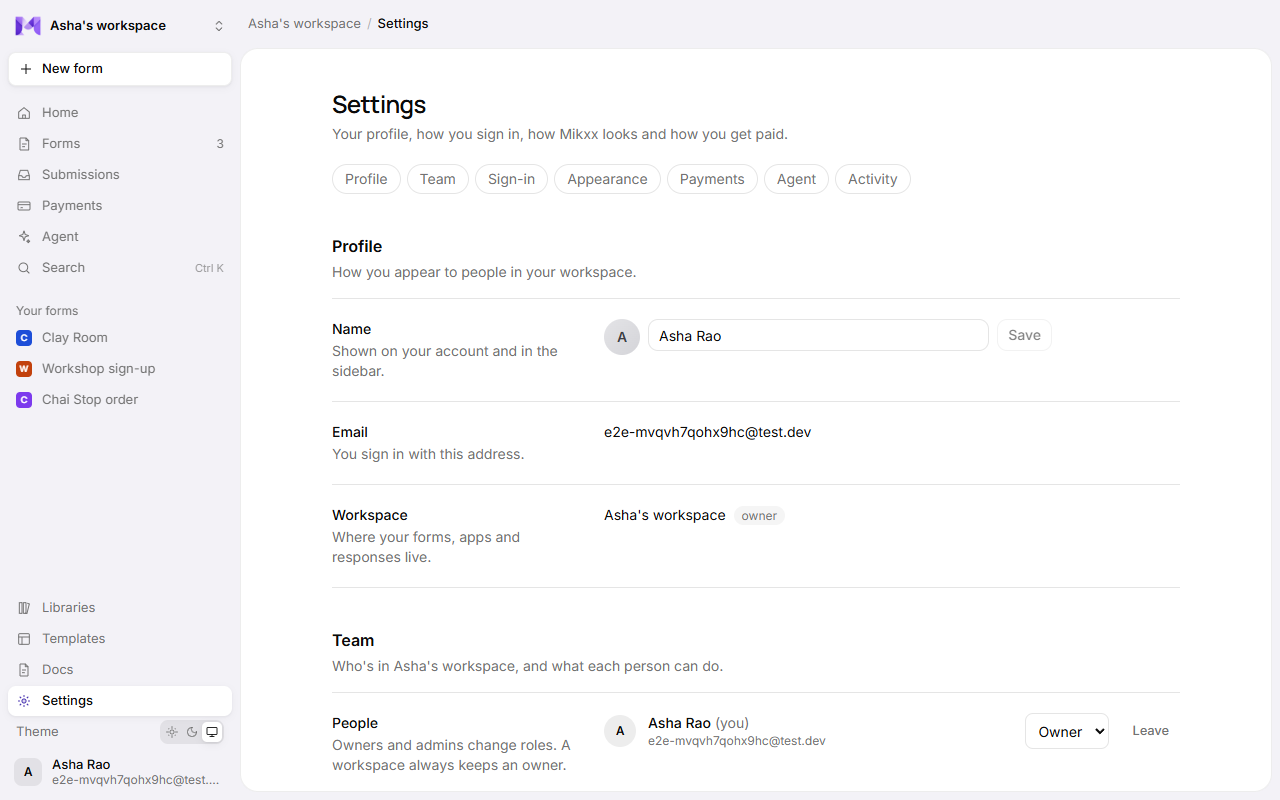
In Settings → Team → People, pick a new role beside someone's name, or Remove them (click again to confirm).
- Admins change and remove editors and viewers. Only owners change or remove admins and owners, or make someone an admin or owner.
- A workspace always keeps an owner: the last owner can't step down, be removed or leave. Make someone else an owner first.
- Someone removed loses access straight away.
Leave a workspace
Click Leave beside your own name (click again to confirm). You go back to your own workspace.
More than one workspace
Creating an account creates your own workspace, with you as its owner. Joining another adds it to the workspace menu at the top of the sidebar: pick one to switch. Mikxx remembers your choice on this device.
Good to know
- Important changes are recorded with who made them. Owners and admins see them in Settings → Activity. See Activity history.
- Your forms' customers sign in separately, per app, and aren't members of your workspace. See Customer sign-in.