Versions
Edit a live form calmly, publish when ready, and bring back any version.
Respondents always see a published version of your form, never your edits in progress. Change a live form calmly, then publish when it's ready. Every published version is kept, and you can bring any of them back.
How it works
- Going live saves version 1 and shows it.
- Editing a live form, in the builder or through the agent, changes your working copy only. The builder shows Live · v1 and a Publish changes button.
- Publish changes saves version 2 from your working copy and shows it straight away. Publishing with nothing changed makes no new version. The button is in the builder's top bar, and on a bar above every tab of the form's page whenever there's something to publish.
See and restore versions
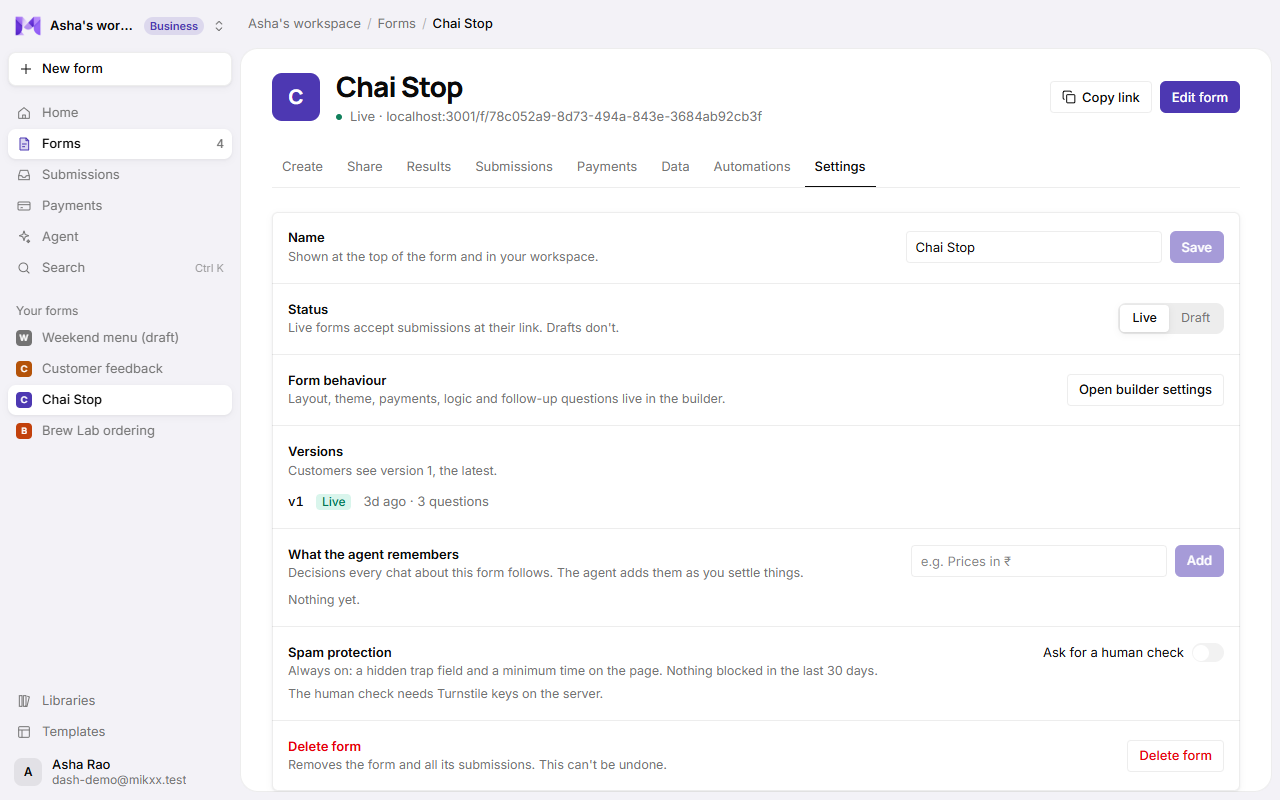
Open the form's page → Settings → Versions:
- What customers see now ("Customers see version 3"), and whether you have changes they don't.
- Each version: its number, when it was published, how many questions it has, and its note. The live one is marked Live.
- Restore brings a version back into the editor. Customers keep the live version until you publish again, so you can check it first.
What a version includes
The form's name, description, questions, design and display mode. Not included, because they're live data: your lists and their records, responses and payments. Options a question takes from a list stay up to date in the live version without publishing, so a new class or a sold-out item shows straight away.
Good to know
- Responses are checked against the version the respondent saw.
- If you restore while someone else is editing, you're told the form changed and nothing is overwritten.
- Each form keeps its 50 newest versions, and any version published in the last 180 days. Older ones beyond that are removed. The version customers see is always kept.