Submissions
Find, handle, edit and export responses; statuses and payments on each.
Every response lands in Submissions (all your forms) and in each form's Submissions tab.
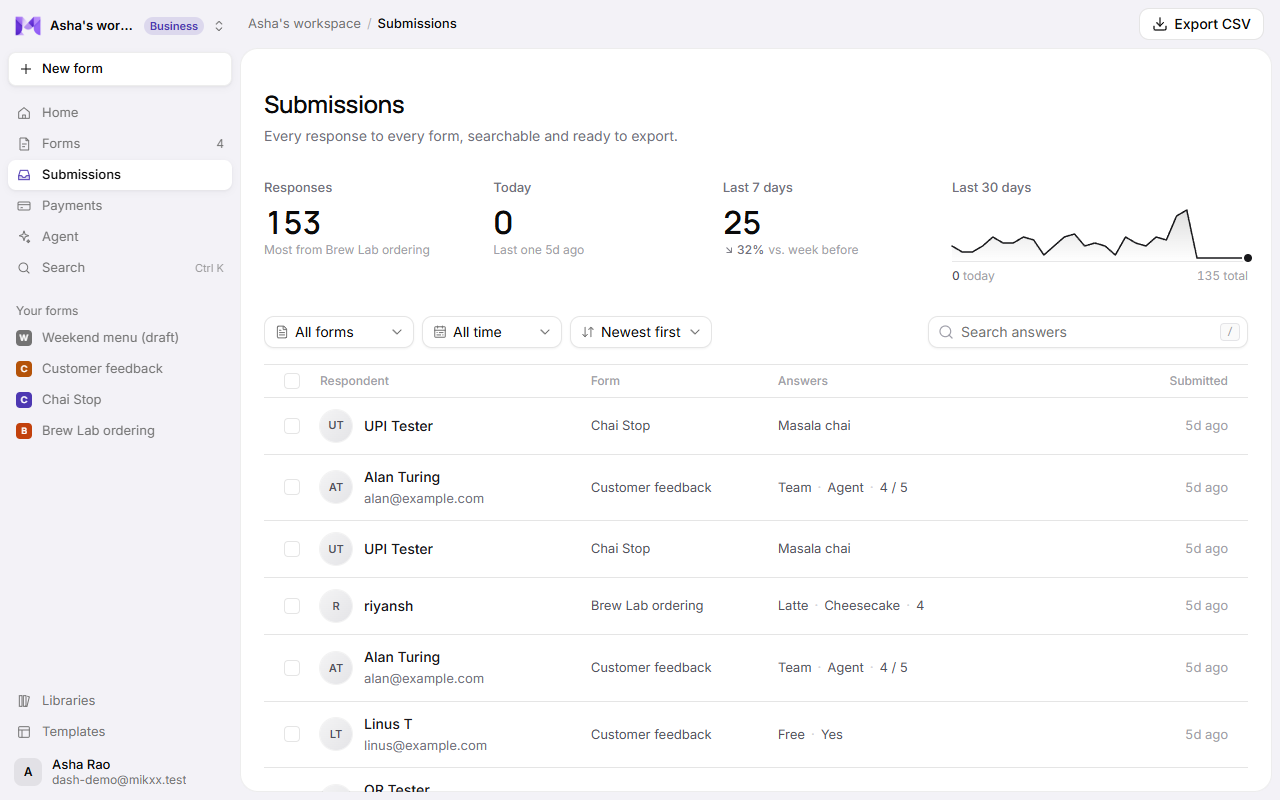
Find responses
- Filter by form, by status, or by payment.
- Open a response to see every answer, AI follow-ups next to the question they belong to, the price it was charged, and its payment.
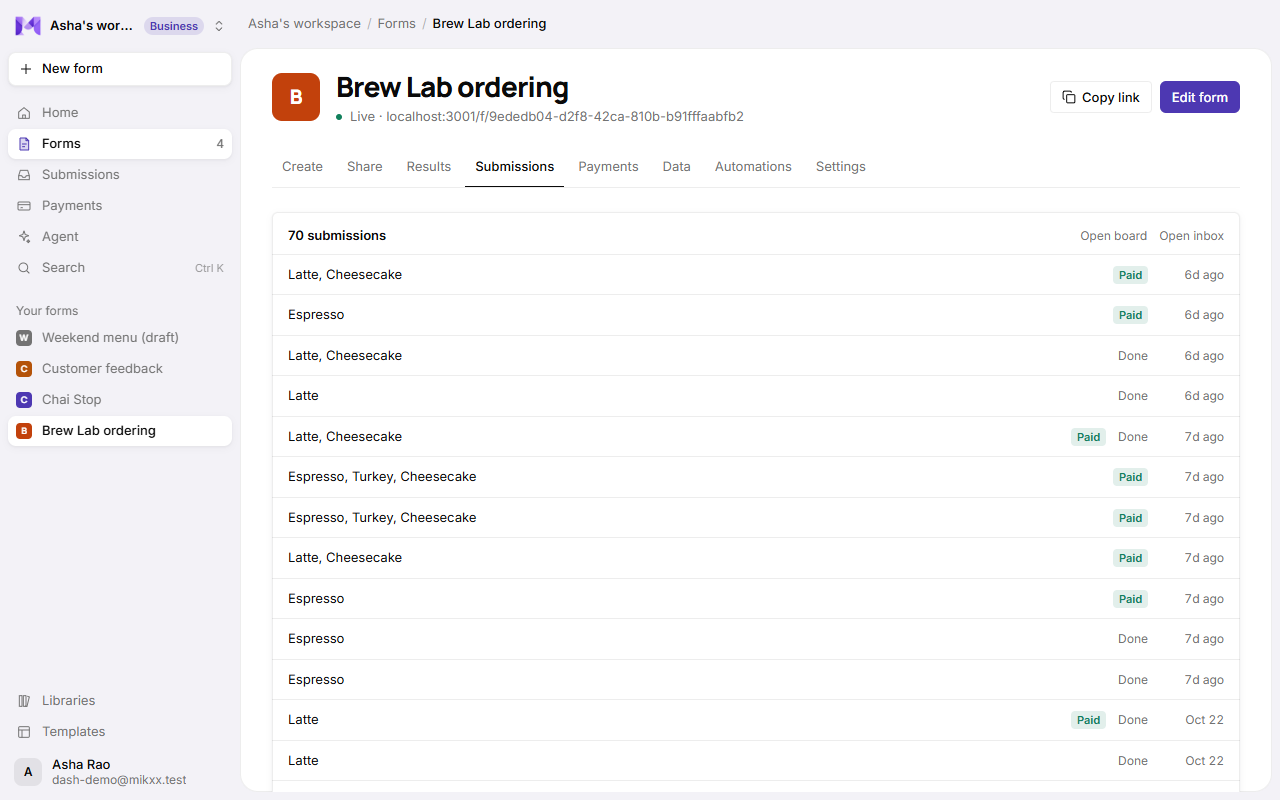
Statuses
Move orders and bookings along as you handle them:
| Status | Means |
|---|---|
| New | Just arrived. |
| In progress | You're on it. |
| Done | Handled. |
| Cancelled | Called off. A cancelled booking gives its spots back. |
Apps also show an order board with these columns.
Payments on a response
| You see | Means | You can |
|---|---|---|
| Paid ✓ | The money arrived (Razorpay, or you confirmed it). | |
| Confirm UPI | A direct-UPI customer says they've paid and sent their UPI reference. | Confirm UPI once it's in your bank app, or mark it not received. |
| Not paid | Nothing yet. | Mark paid if they paid you another way. |
Edit a response
On bookings and orders, change answers (a different class, an extra item). Answers are checked as on submit; spots and the price follow. If someone else changed it first, you're told rather than overwriting.
Unfinished responses
On forms that let people finish later, saved answers that haven't been sent show under Unfinished in the form's Submissions tab. Open one to see what's there, or delete it.
Export and delete
- Export CSV: everything, what's filtered, or what's selected. One column per question.
- Delete one response or a selection. This can't be undone.
Good to know
Each order keeps the price it was charged, so changing your prices later never changes a past order.