Split-screen and fullscreen forms
A picture or your brand beside the questions, and one screen at a time.
Two ways to give a form more presence than a plain page: a split screen, with a picture or your brand beside the questions, and fullscreen, one question or one step filling the screen at a time. They combine: a fullscreen form can sit beside a split panel.
Split screen
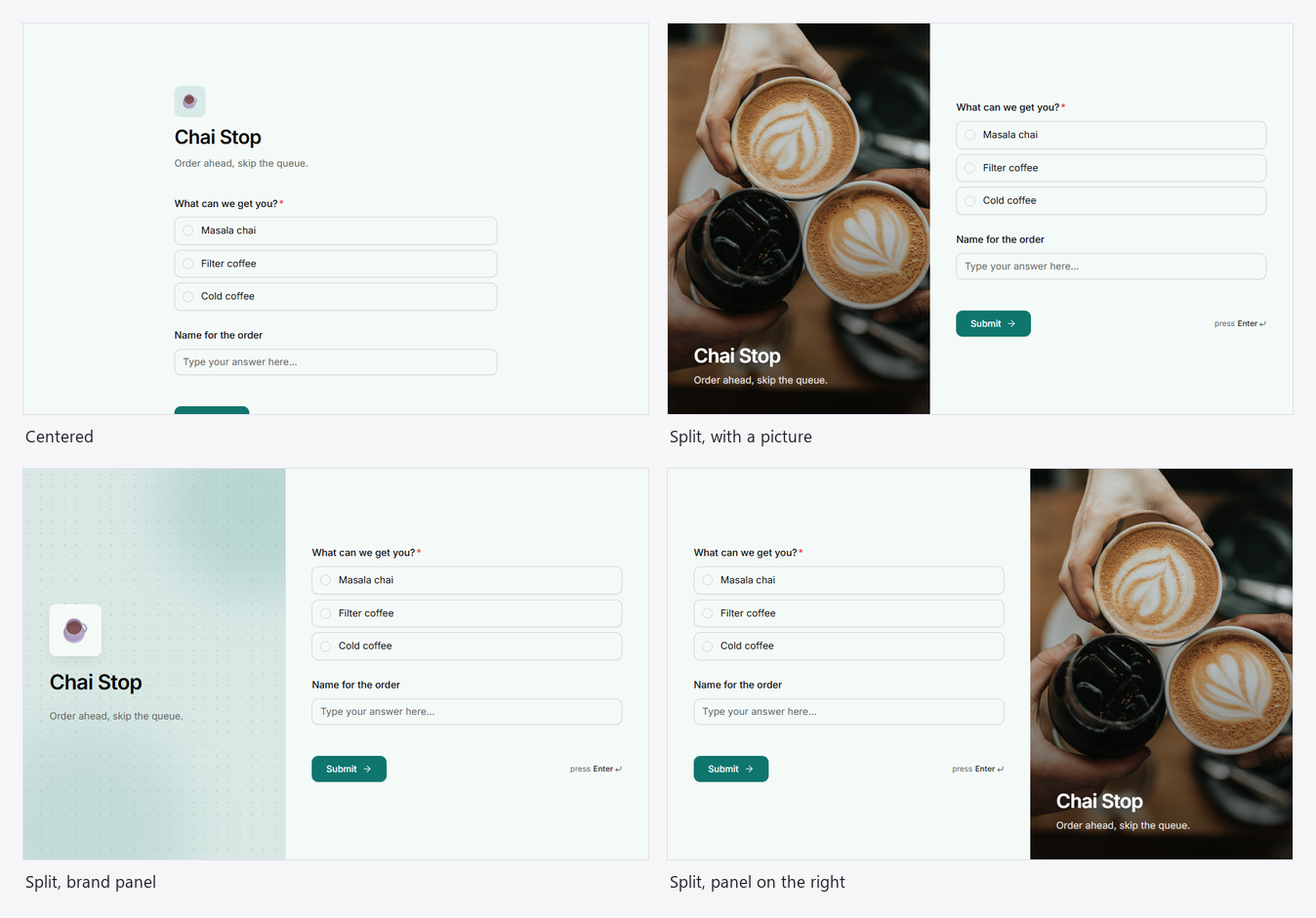
The page divides in two. A side panel holds the form's identity (a picture or your brand colours, the title and the description) and stays put while people answer on the other side.
Make one
- Open Design in the builder's dock.
- Under Layout → Page, choose Split. The canvas shows the panel straight away.
- Choose Panel side: Left or Right.
- Upload a Panel image (or paste an https link), or leave it empty for a brand panel: your colours, the backdrop pattern and the header icon.
- Click the title or description in the panel and type to change them.
| Without a picture | With a picture |
|---|---|
| The panel is a wash of your accent colour with the backdrop pattern, the header icon in a tile, the title and the description. | The picture fills the panel, darkened at the bottom so the white title and description read clearly. While it loads, the panel shows a deep shade of your accent, and the picture fades in. |
On phones and narrow windows
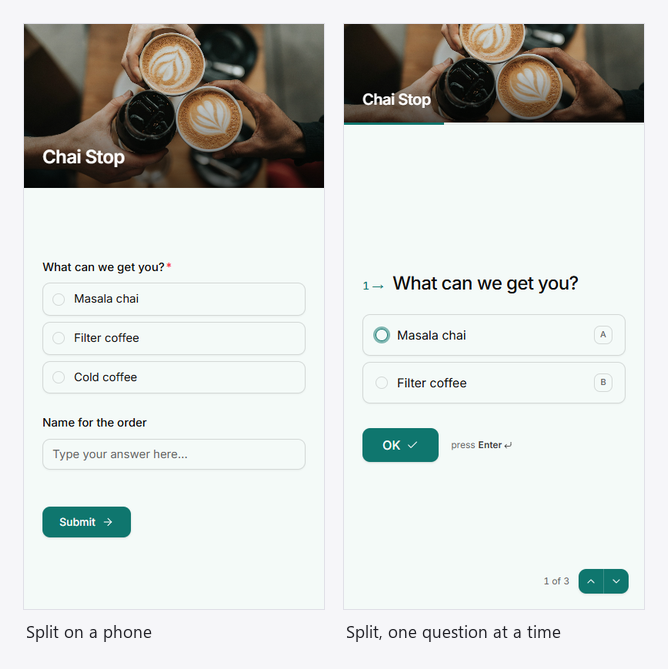
The panel becomes a banner across the top: the picture with the title over it, or a brand strip with the icon, title and description. On fullscreen forms the banner is shorter, so the question keeps the room.
Good to know
- The title and description live in the panel, so they aren't repeated above the questions.
- A short form sits in the middle of its side, not at the top.
- Use a picture of the real thing (your café, your studio, your product); wide and tall crops both work, since the panel fills by cropping.
Fullscreen
Fullscreen forms show one screen at a time with nothing else around it. Choose them under Form settings → Layout in the builder. See Display modes.
| Mode | Each screen holds | Moving on |
|---|---|---|
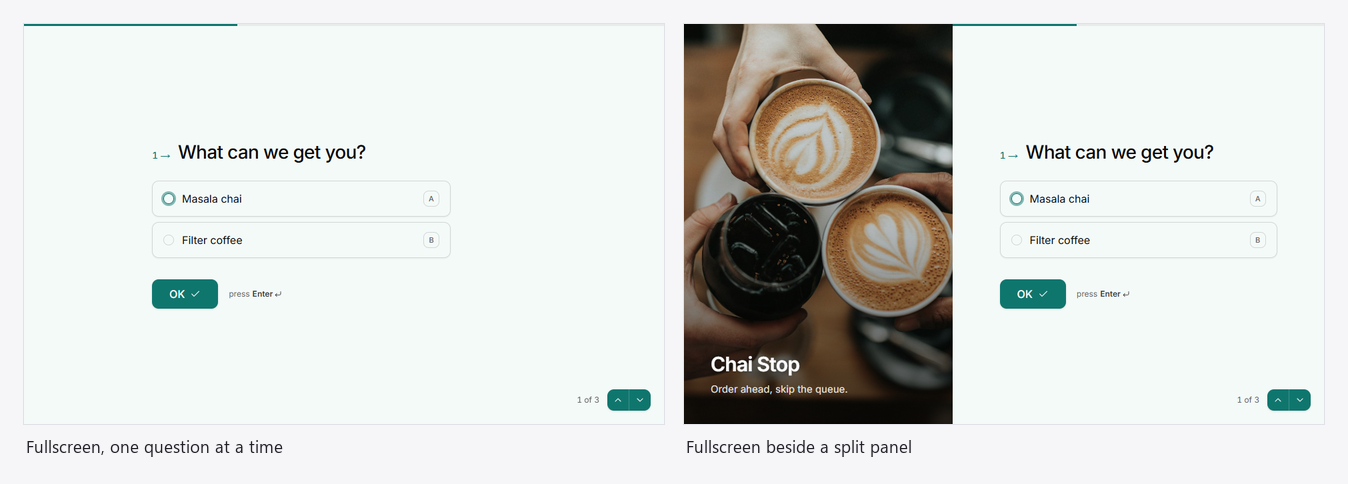
| One question at a time | A single question, large, numbered. | OK or Enter; a single choice moves on by itself. Letter keys (A, B, C…) pick answers. The arrows at the bottom right go back and forward. |
| Multi-step | One step's questions, with the step's name. | Next and Back. |
Design them
- Welcome: one-question forms open on a welcome screen; pick its style (Simple, Hero, Split or Card) under Design → Screens.
- Progress: a bar, segments, dots, numbers or step names, on any side. See Progress.
- Split: add a side panel as above; the progress and the arrows stay on the questions' side.
- Thank you: Simple, Celebrate or Summary, with your own words.
Which to use
| You want | Use |
|---|---|
| A quick form people answer at a desk | Classic, centred |
| Your place or product to be seen while people answer | Split, with a picture |
| A conversational feel, mostly taps | One question at a time |
| Long forms in natural groups | Multi-step |
| All of the brand and a conversational feel | One question at a time, beside a split panel |