Display modes
One page, one question at a time, steps or an app, and the builder's suggestion.
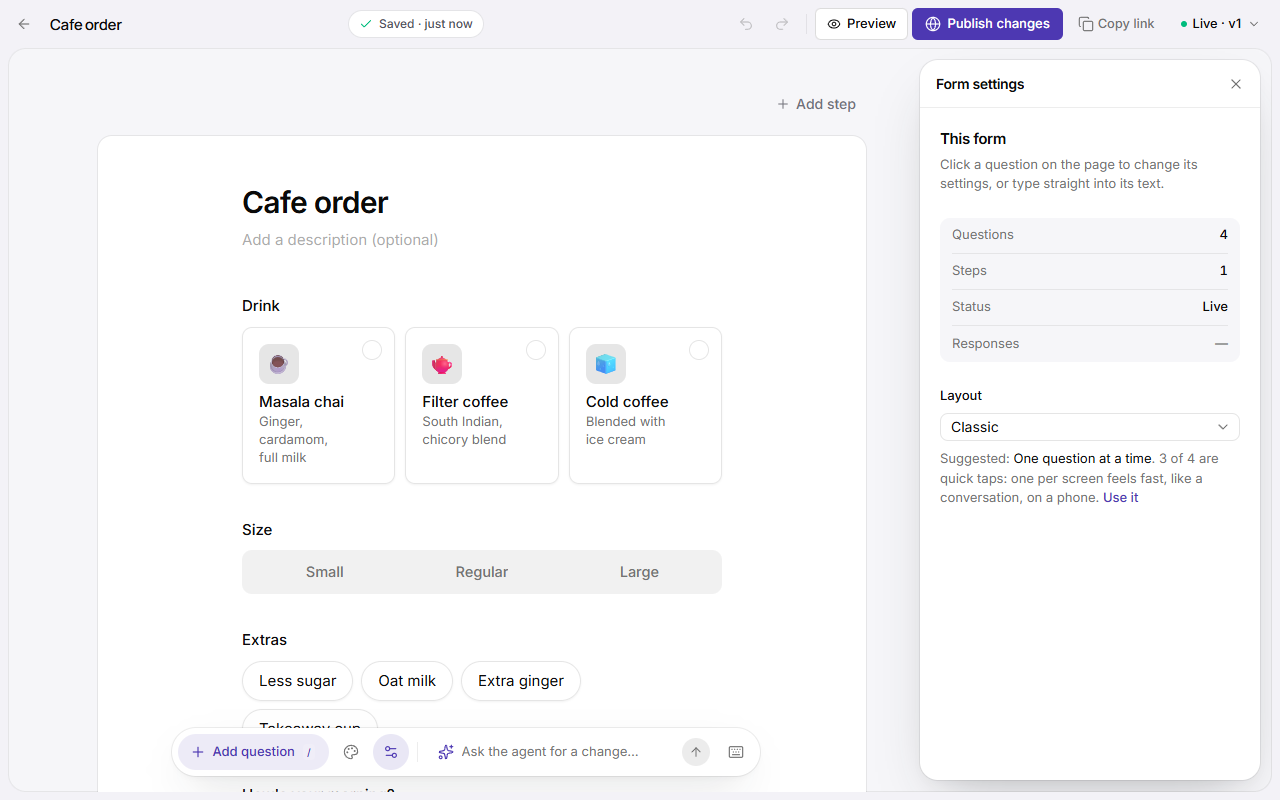
How a form flows: everything at once, one question at a time, a few steps, or as an app. Choose it under Layout in the builder's Form settings (on a phone: the ⋯ menu).
| Mode | What respondents see | Best for |
|---|---|---|
| Classic | One page with every question. Several steps become sections of that page. | Up to about 6 quick questions answered at a desk. |
| One question at a time | One question per screen, with a progress indicator. Single choices move on by themselves. | Feedback, surveys, quizzes and anything mostly answered by tapping, up to about 10 questions. |
| Multi-step | One step per screen, each with its name. | 8 or more questions in natural groups (2 to 5 steps). |
| App | A splash screen, one screen per step, a cart, review and receipt. | Ordering, booking, anything people browse first. See Mini apps. |
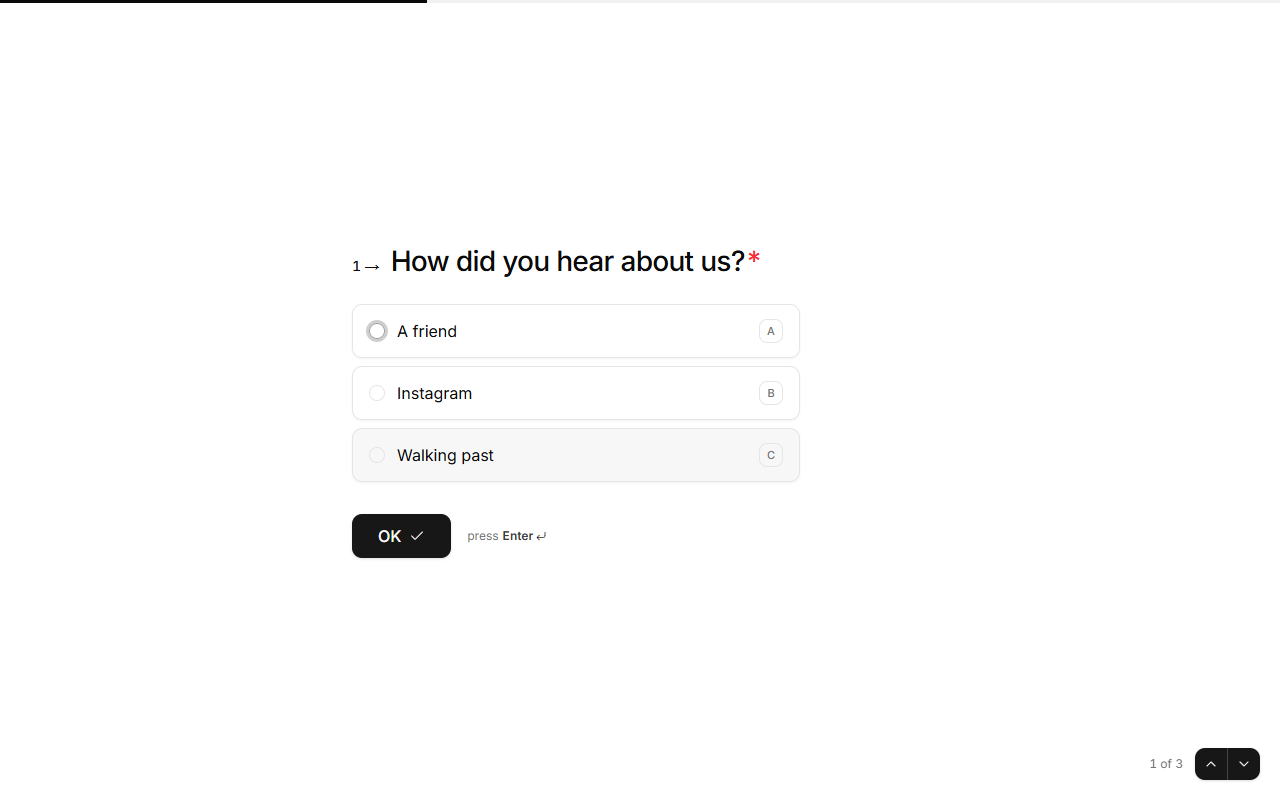
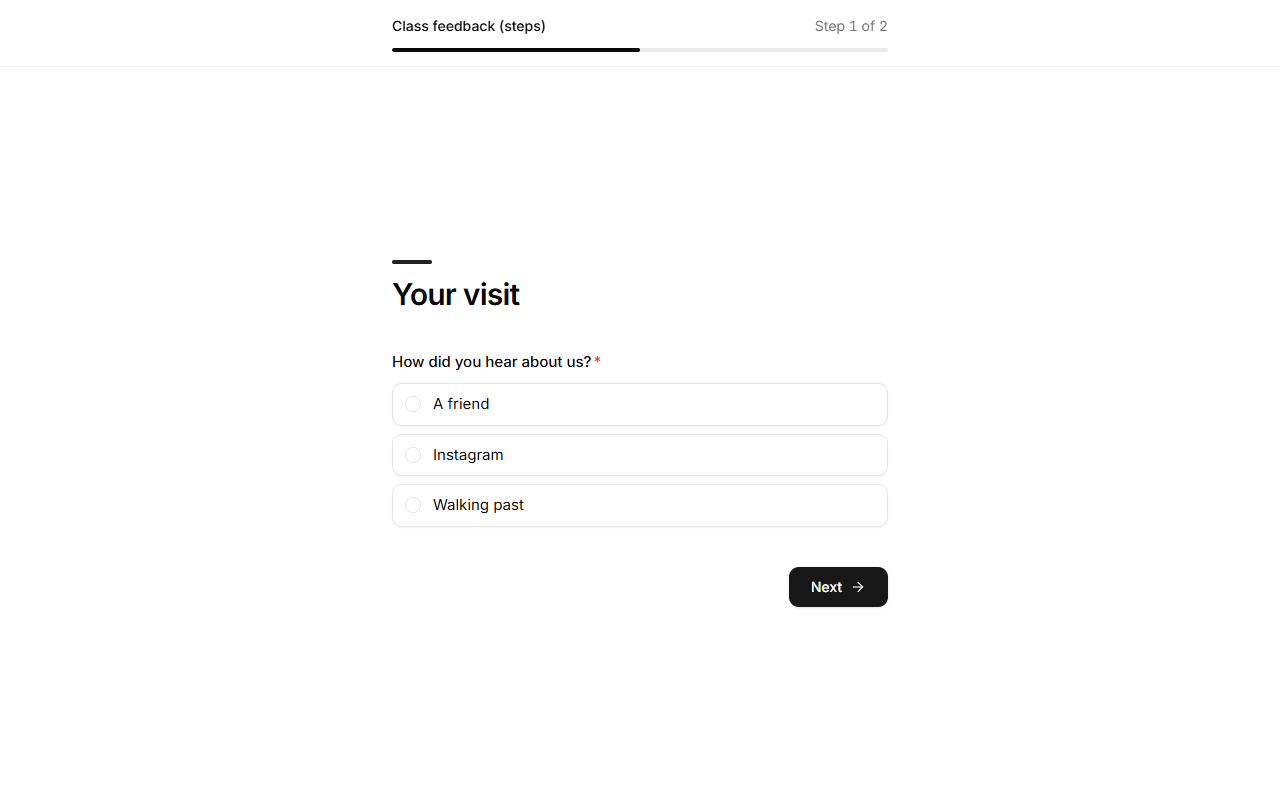
Fullscreen forms can also sit beside a picture or your brand: see Split-screen and fullscreen forms.
The suggestion
The builder suggests a mode from your questions and says why, under Layout in Form settings. For example, "3 of 4 are quick taps: one per screen feels fast, like a conversation, on a phone". Click Use it to switch, or ignore it. On a phone, the suggested mode is marked Suggested in the ⋯ menu, with the reason under it. The agent uses the same advice when it designs a form.
Progress
Multi-screen forms show progress as a bar, segments, dots, numbers or step names, at the top, bottom or side, or not at all. Set it in Design.