Build with the agent
Describe what you need and review a complete draft before anything is saved.
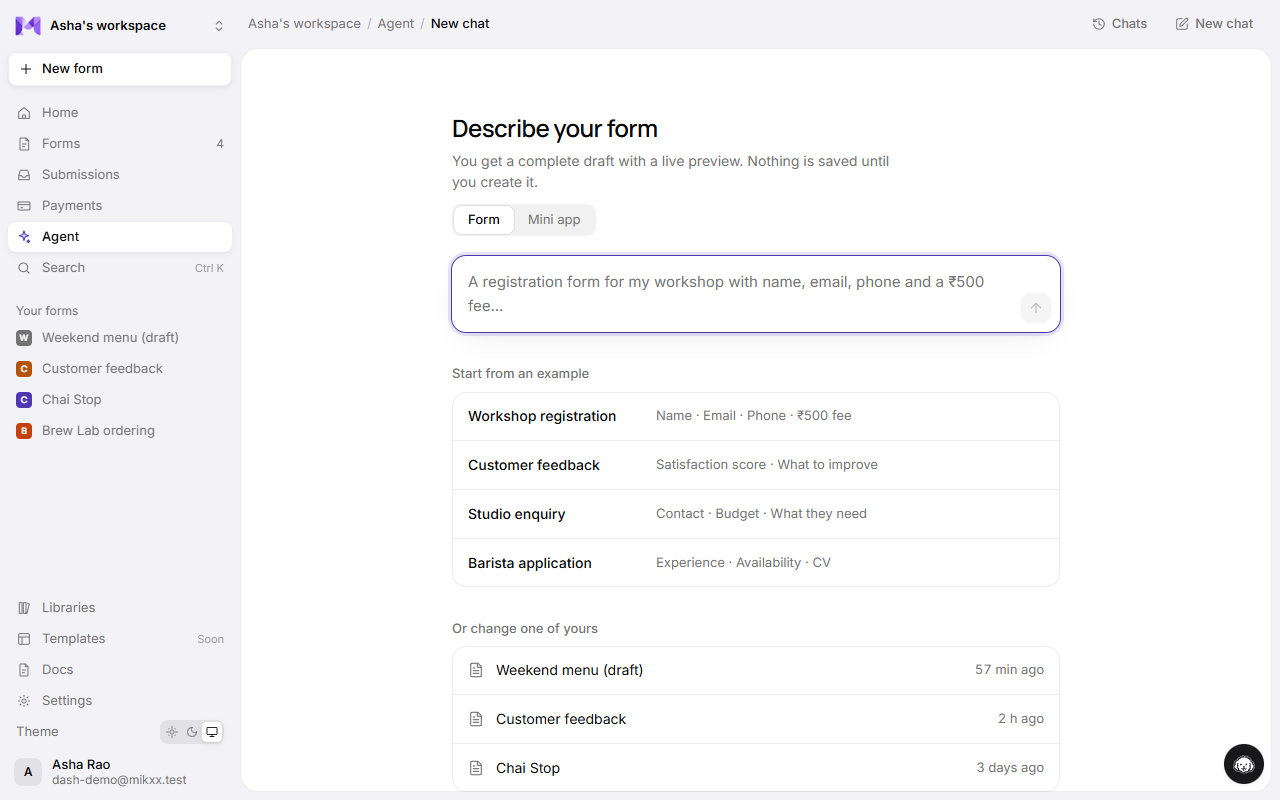
Describe what you need in your own words, and the agent builds a complete form or mini app for you to review. Nothing is saved until you say so.
Start
Type what you want into the box on Home and click Build it, or open Agent in the sidebar. Choose Form or Mini app above the box, or start from one of the examples below it; each shows the questions it makes. Be specific about what matters to you. For example: "A registration form for my pottery workshop with name, email, phone and a ₹500 fee", or "An ordering app for my café with a menu, table number and UPI payment". Add "Just build it" to skip questions.
What happens
- It may ask first. If something would change the result, like who fills it in or what you need from them, it asks a few questions in one go. Answer what you like, or say "you decide".
- It plans. Each draft starts with a short plan: what it's building, for whom, the screens, and anything it assumed. Click the plan to see it all.
- It drafts. The form appears on the stage and fills in question by question; the top bar says what it's doing ("Adding questions · 4 so far"). An app's lists (a menu, classes) show with their starting records.
- You choose. Try other looks from the suggestions, tweak it, or ask for changes. Then click Create form (or Create app). Only then is it saved.
The studio
Once there's a draft, the agent becomes a studio: the draft fills the screen and the sidebar shrinks to icons.
- The conversation floats over the left side. Fold it down with the button at its top right to see the whole draft with just the prompt bar; the speech-bubble button with the message count brings it back.
- Desktop or phone: switch with the small toolbar at the bottom of the stage.
- Ask about one question: click a question in the draft and a bar opens under it. Type what should change, or pick a quick option like "Make it required".
After it's created
The chat stays attached to the form, so you can keep asking for changes ("make the phone question optional"). See Editing with the agent. From the card you can jump to Edit lists, the Builder, or Publish & share.
Tips
- Say who it's for and what you'll do with the answers. The agent picks questions and layout to match.
- Mention payments, bookings or customer sign-in if you need them. The agent sets them up.
- Settled choices like "always in rupees" are remembered for this form. See What the agent remembers.