Your account
Sign-in methods, password, appearance and settings.
Manage how you sign in and how Mikxx looks in Settings.
Sign in
Signing in takes one step at a time, like a Mikxx form: Continue with Google, or type your email and click Continue, then enter your password. Click your email at the top of that step to change it.
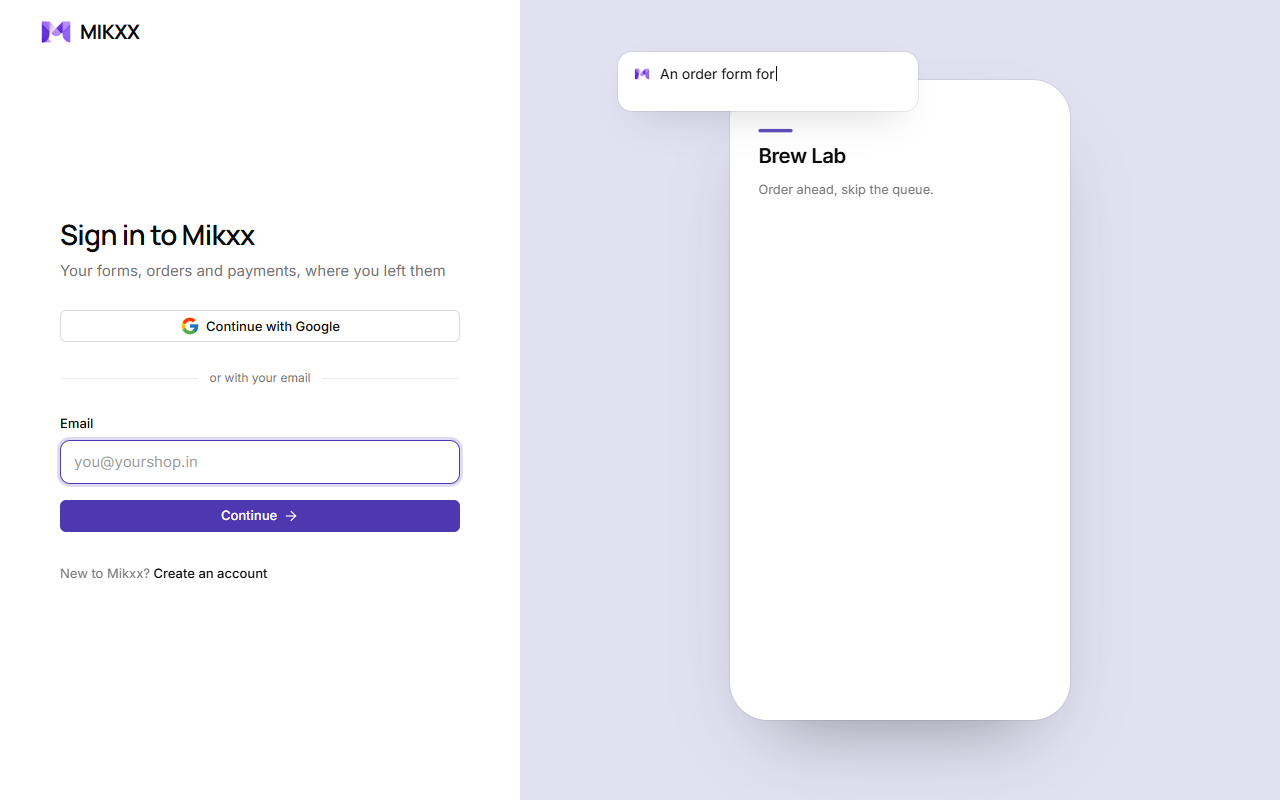
| Way | Notes |
|---|---|
| Email and password | Change it in Settings → Sign-in. |
| Use Continue with Google, or connect Google in Settings to sign in with it too. | |
| Forgot password | Forgot password? on the password step. See below. |
Sessions stay signed in on your device until you sign out. Repeated wrong passwords are slowed down.
Create an account
-
Open Create an account from the sign-in page, or Start free on the home page.
-
Type your email and click Continue (or use Continue with Google).
-
Add your name and a password of at least 8 characters; the bar under it fills as you type. Click Create account.
-
Check your email. Mikxx emails you a 6-digit code; type it in to confirm your address. It works for 10 minutes, and Send a new code sends another. (Signing up with Google skips this: Google has already confirmed your email.)
-
A few quick questions, one screen each, while a preview of your app fills in beside them: your business name and kind, what you want to take first (orders, bookings, tickets, enquiries, payments or feedback), how customers pay you today, who'll use Mikxx, and where you heard about us. Skip for now goes straight to Home.
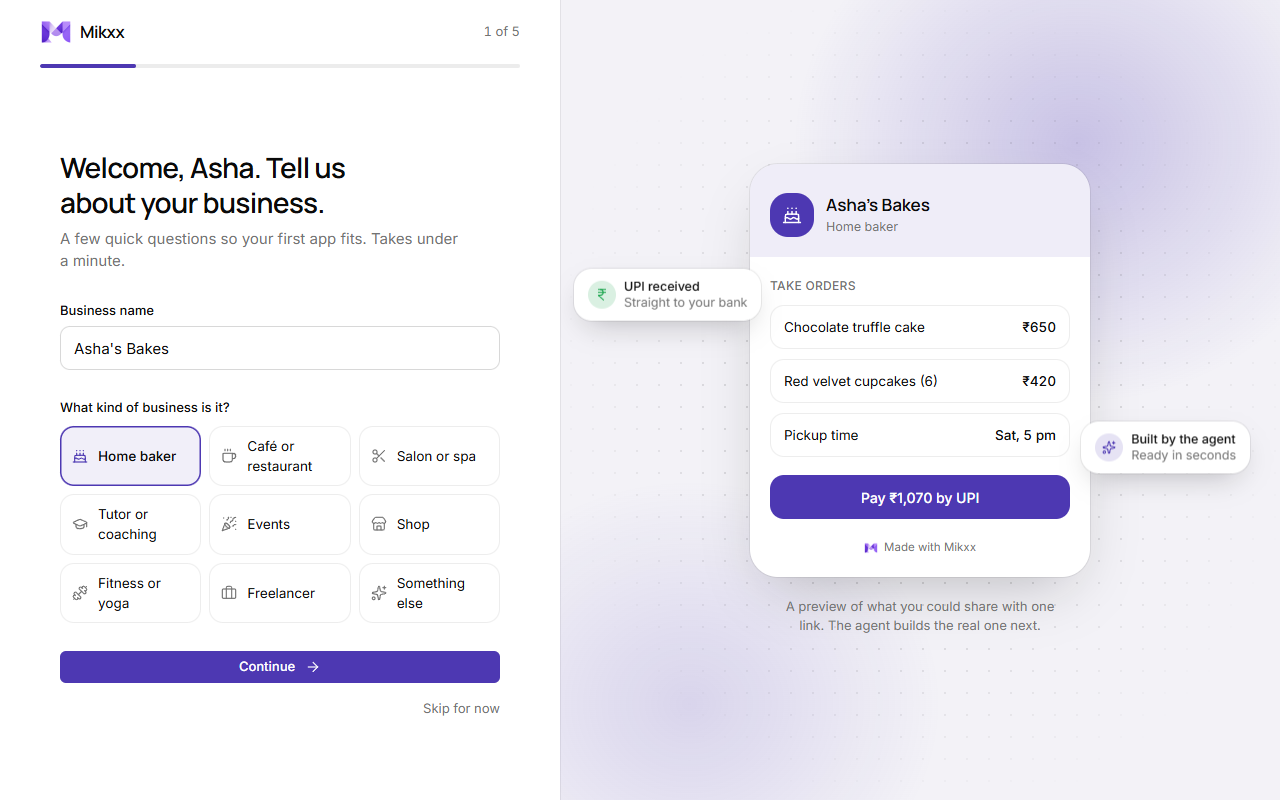
The first questions, with a preview of your app beside them -
Pick your plan. Free starts at once; Pro or Business opens Razorpay checkout. See Plans and billing.
-
Let's build your first app. The suggestion matches what you said you take first; the agent drafts it for you to review, and nothing is saved until you say so.
New accounts that skipped a step see it again the next time they open Mikxx.
Forgot your password
Three steps, shown by the bars at the top:
- Enter your email and click Send code. If it has a Mikxx account, a 6-digit code is emailed; it works for 10 minutes. (The page never says whether an address has an account.)
- Type or paste the code. Send a new code sends another; Different email goes back.
- Choose a new password and click Save and sign in. This signs you out everywhere else.
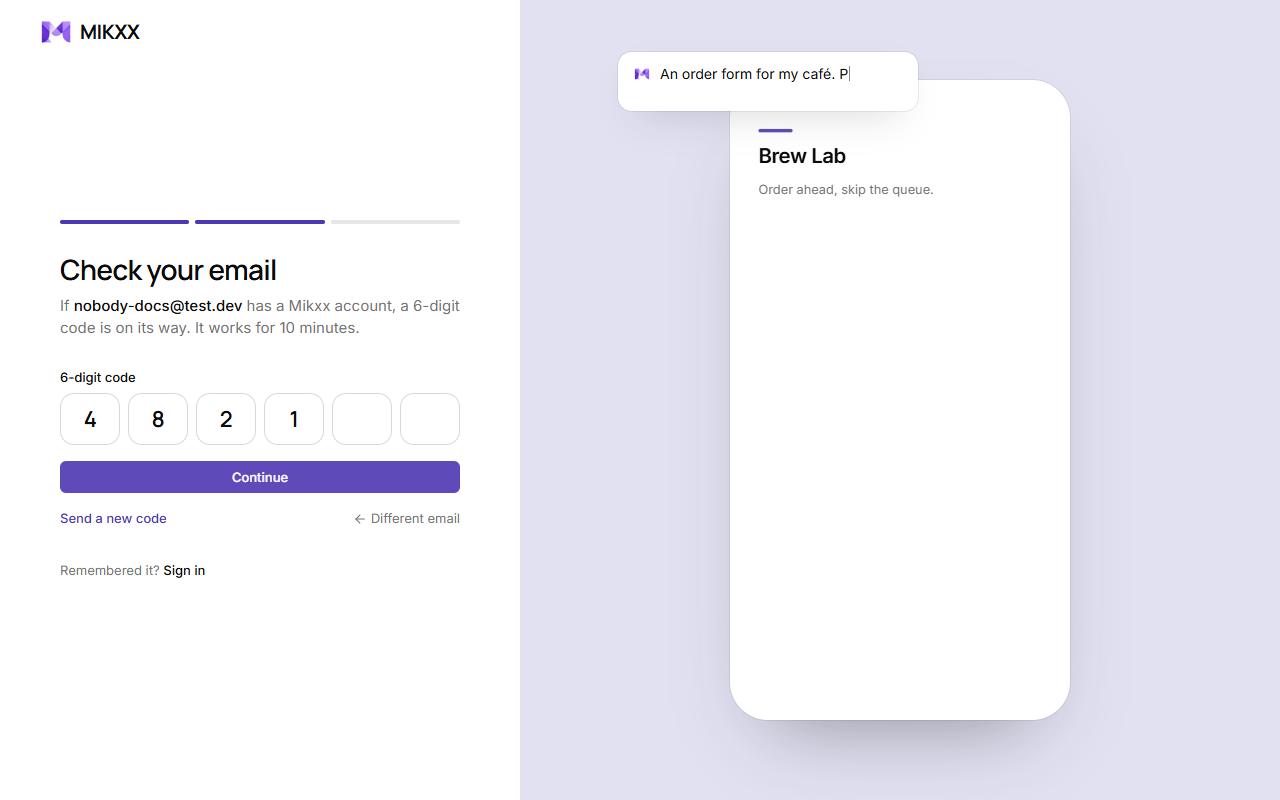
Settings
| Section | What's there |
|---|---|
| Profile | Your name, your email and your workspace. |
| Team | Invite teammates and set their roles. See Team and roles. |
| Sign-in | Your password, and connecting Google. |
| Appearance | Light, dark, or follow your device. |
| Plan | Your plan and when it renews, with a link to Plan and billing to change, cancel or see receipts. See Plans and billing. |
| Payments | Points to the Payments page, where you set up how you get paid. See Payouts. |
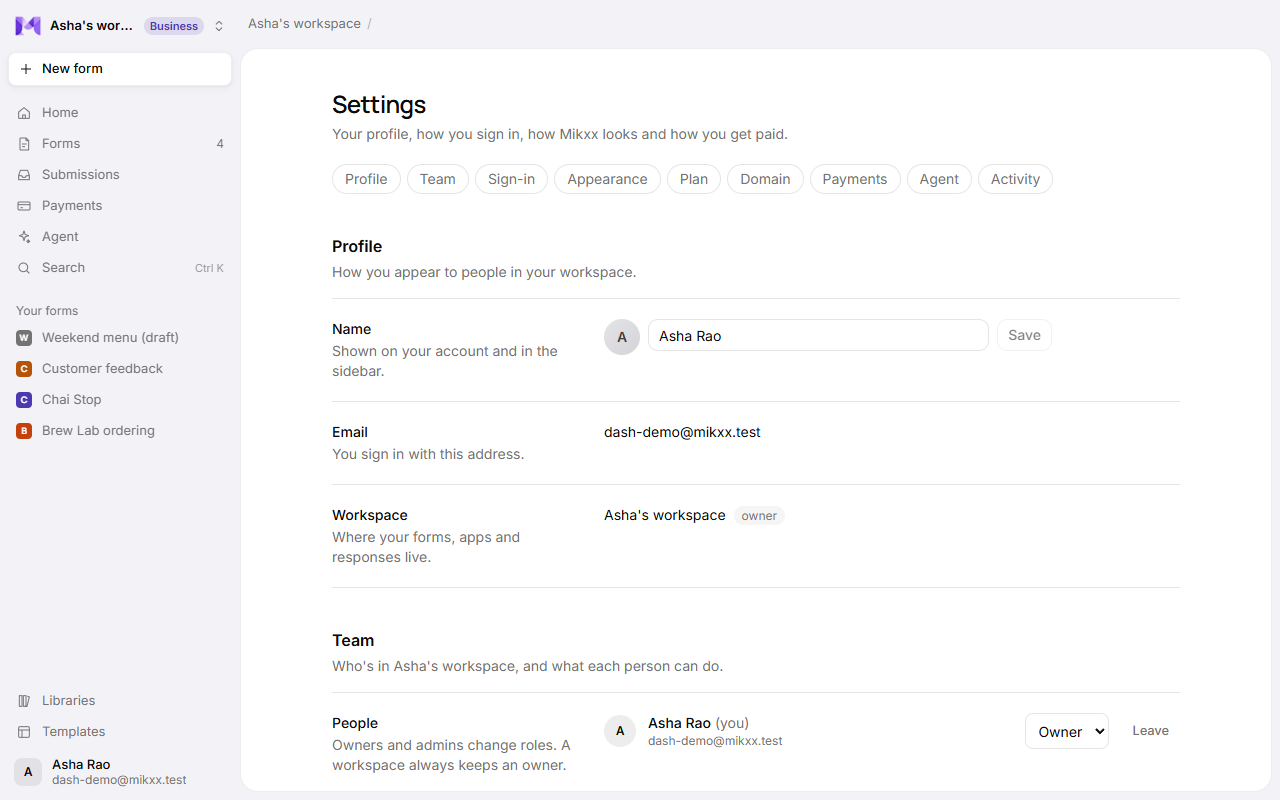
Settings, Help, Docs and the theme (light, dark or your device's) are in your account menu: click your name at the bottom left.
Good to know
- Signing in with Google links to a Mikxx account with the same email. If that account's email was never confirmed (someone else may have signed up with your address), its password is removed and anyone signed in to it is signed out, so only you get in. A confirmed account keeps its password.
- Your forms' customers sign in separately, per app, with an emailed code. Their accounts are not Mikxx accounts. See Customer sign-in.