The builder
Add, arrange and edit questions; save, undo and switch views.
The builder is where you shape a form by hand. Open it from New form, from a form's Edit form button, or from the agent's Builder link.
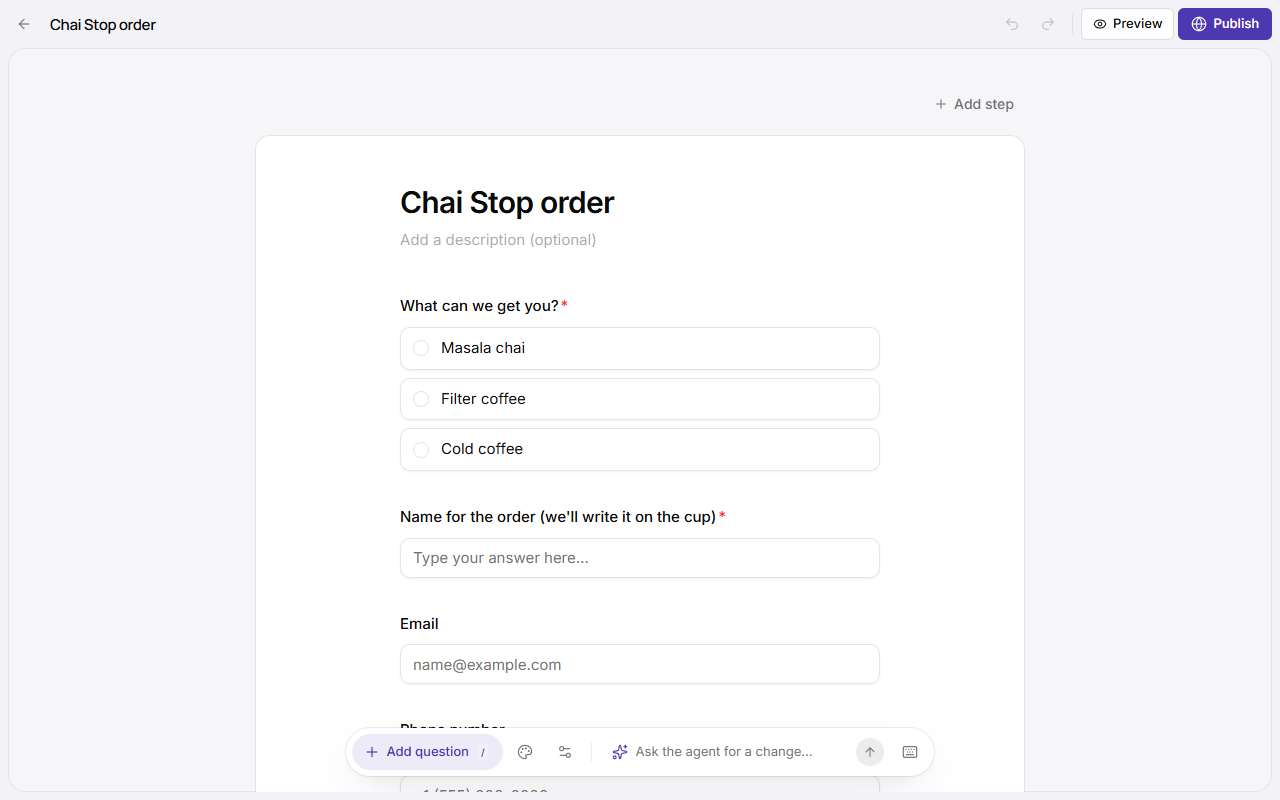
The page is the editor
The form fills the screen, drawn exactly as people will see it, in your colours and fonts. You edit it where it sits:
- Type straight into the page. Click the form's title, a question's label or its help text
and type. Press
EnterorEscwhen you're done. - Click a question to select it. Its settings slide in on the right: required, options,
validation, width and the rest. The page moves aside so the
question stays in view. Press
Escor click the page around the form to close them. - Drag a question by the handle on its left to move it.
- Hover a question for its type, Duplicate and Delete.
Adding questions
- "+" between questions: hover the space between two questions and click the + to add one right there.
- Add question in the dock at the bottom, or press
/, opens the list of every question type and layout block. The new one goes after the selected question, or at the end.
The dock
The bar floating at the bottom of the page holds:
-
Add question, as above.
-
Design: colours, fonts, component libraries and layout. The page restyles live behind the panel as you choose. See Design and themes.
-
Form settings: how many questions and steps, whether it's live, its responses, and the Layout (Classic, One question at a time, Multi-step or App; see Display modes). A suggestion appears when another layout would suit your questions better, with the reason; click Use it to switch.
-
Lists & screens (apps only): the app's lists, their records and the tabs they show as, the same as the form's Data tab, without leaving the builder. On a phone it's in the menu.
-
Ask the agent for a change…: type what you want and press
Enter. The agent opens in a panel beside the page, in this form's latest chat (or a new one), and its changes land on the canvas without leaving the builder. Open full chat opens the same chat on the Agent page.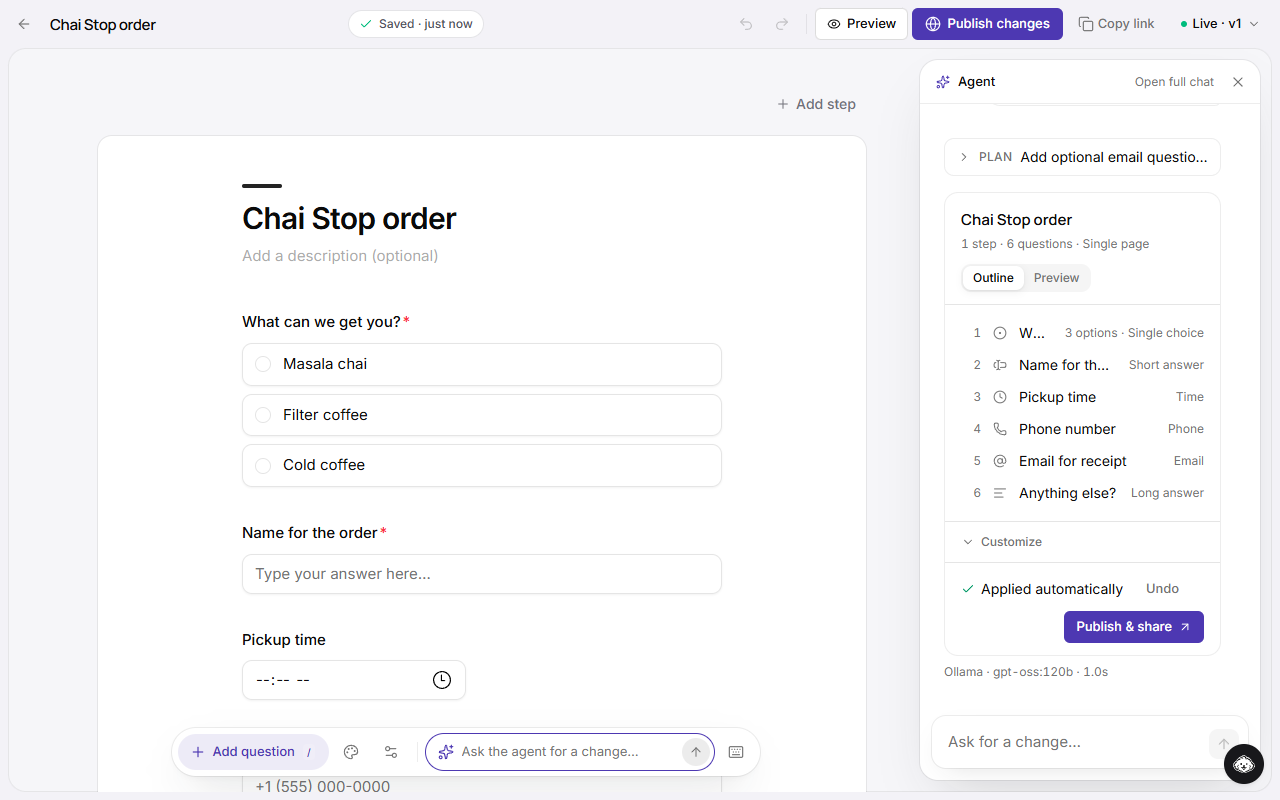
The agent panel beside the builder, with a new email question applied on the canvas -
Keyboard shortcuts: the list below.
Keyboard
| Keys | What it does |
|---|---|
/ | Add a question |
↑ ↓ | Select the previous or next question |
Enter | Edit the selected question's label |
Ctrl + Shift + ↑ ↓ | Move the selected question up or down |
Esc | Close the settings, or clear the selection |
Ctrl + Z, Ctrl + Shift + Z | Undo, redo |
On a Mac, use Cmd for Ctrl.
The top bar
- Name: what people see at the top of the form.
- Save status: Saving…, Saved, or what went wrong. Changes save on their own.
- Undo and redo: every change, including design changes.
- Preview: try the form as a respondent would, on a desktop or phone frame. Back to editing returns to the page.
- Publish, or the Live menu once published. See Publish and share.
Steps
A form has one or more steps, shown as tabs above the page; Add step adds one. In Classic mode, steps are sections of one page; in Multi-step and App mode, each step is its own screen. Name steps for what they ask ("Your details", "Your order"). Respondents see those names in the progress indicator. A step with more than 12 questions gets a short contents list at the left of the page: click one to jump to it.
On a phone, the builder shows one thing at a time, with the same settings in a sheet.
Working with others
If the same form is open in two tabs, or a teammate saves first, the builder tells you and lets you keep your version or load theirs. Nothing is overwritten silently.
Good to know
- Validation runs on the server too. If a change can't be saved (say, a choice question with no options when publishing), the save status says exactly what to fix.
- Editing a live form doesn't change it for respondents until you Publish changes. See Versions.